Themes
Consoul TUI supports themes to customize the visual appearance of the interface.
Consoul Official Themes
Consoul provides two official themes based on the brand color palette featuring Sky Blue (#0085CC), Binary Slate (#3D3D3D), and Pure White (#FFFFFF).
Consoul Dark (Default)
Official Consoul dark theme for comfortable coding sessions.
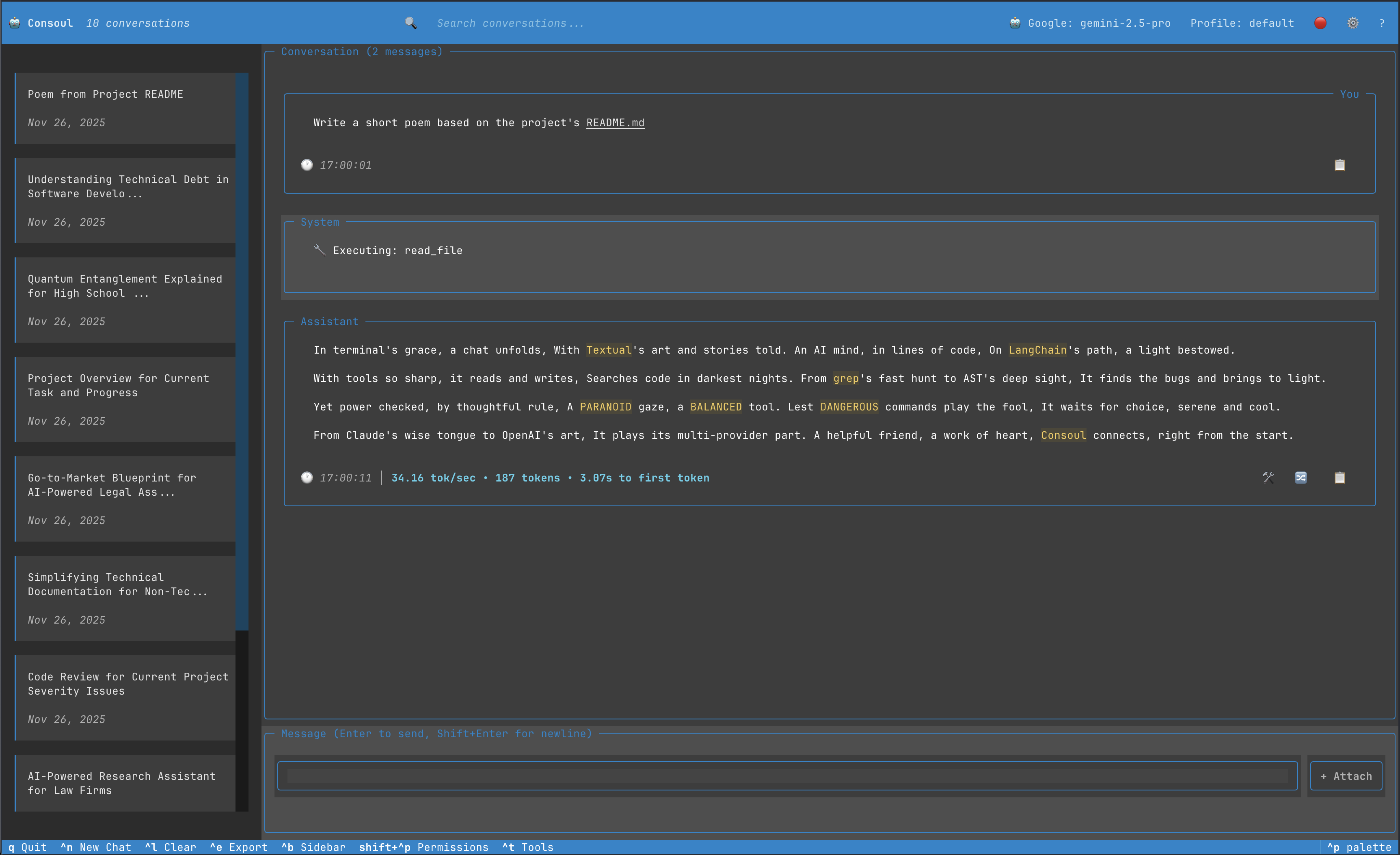
Color Palette:
- Primary: Sky Blue (#0085CC) - Innovation and trust
- Secondary: Deep Purple (#44385E) - Assistant messages
- Surface: Binary Slate (#3D3D3D) - Panels and cards
- Background: Dark Gray (#2A2A2A) - Base background
- Text: Pure White (#FFFFFF) - Main text
- Muted: Light Gray (#9BA3AB) - Secondary text
Best For:
- Low-light environments
- Reduced eye strain
- Professional coding sessions
- Extended use
- Night work
Features:
- Carefully calibrated contrast ratios
- Easy on the eyes for long sessions
- Professional appearance
- Brand-consistent design
Consoul Light
Official Consoul light theme for bright environments.

Color Palette:
- Primary: Sky Blue (#0085CC) - Innovation and trust
- Secondary: Binary Slate (#3D3D3D) - Professional foundation
- Surface: Very Light Gray (#F8F9FA) - Panels and cards
- Background: Pure White (#FFFFFF) - Base background
- Text: Binary Slate (#3D3D3D) - Main text
- Muted: Gray (#6C757D) - Secondary text
Best For:
- Bright environments
- Daytime use
- High-contrast displays
- Print-friendly screenshots
- Well-lit offices
Features:
- Maximum readability in bright light
- Clean, professional appearance
- WCAG AA compliant contrast
- Brand-consistent design
Textual Built-in Themes
In addition to the two Consoul custom themes, the TUI also provides access to Textual's built-in themes through the Settings modal.
Available Built-in Themes:
- monokai - Popular dark theme with vibrant colors
- dracula - Dark theme with purple and pink accents
- nord - Arctic, north-bluish color palette
- gruvbox - Retro groove color scheme with warm tones
- tokyo-night - Clean, elegant dark theme
- catppuccin-mocha - Soothing pastel dark theme
- catppuccin-latte - Soothing pastel light theme
- solarized-light - Precision colors for readability
- flexoki - Organic, inky color scheme
- textual-dark - Textual's default dark theme
- textual-light - Textual's default light theme
- textual-ansi - ANSI color theme
These themes are provided by the Textual framework and may not follow Consoul's brand guidelines, but they offer variety for personal preference.
Switching Themes
Via Settings Modal
- Press
^comma(Ctrl+,) to open settings - Navigate to Appearance tab
- Click Theme dropdown
- Select desired theme
- Click Apply

Via Configuration File
Edit ~/.config/consoul/config.yaml:
Restart Consoul to apply changes.
Via Command Line
Theme Comparison
| Theme | Type | Background | Creator | Best Use Case |
|---|---|---|---|---|
| Consoul Dark | Dark | Dark Gray | Consoul | Default, professional work |
| Consoul Light | Light | White | Consoul | Bright environments |
| Monokai | Dark | Dark Brown | Textual | Vibrant coding |
| Dracula | Dark | Dark Purple | Textual | Modern aesthetic |
| Nord | Dark | Blue-Gray | Textual | Calm, focused work |
| Gruvbox | Dark | Brown | Textual | Warm, retro feel |
| Tokyo Night | Dark | Deep Blue | Textual | Modern, sleek |
| Catppuccin Mocha | Dark | Warm Dark | Textual | Pastel lovers |
| Catppuccin Latte | Light | Warm Light | Textual | Soft, gentle |
| Solarized Light | Light | Beige | Textual | High precision |
| Flexoki | Dark | Dark Brown | Textual | Organic feel |
Color Accessibility
Both Consoul official themes follow accessibility guidelines:
Contrast Ratios
All themes meet WCAG AA standards: - Normal text: 4.5:1 minimum ✅ - Large text: 3:1 minimum ✅ - UI components: 3:1 minimum ✅
Color Blindness Support
Themes are tested for color blindness: - Deuteranopia (red-green) ✅ - Protanopia (red-green) ✅ - Tritanopia (blue-yellow) ✅
Colors are never the only indicator: - Icons supplement colors - Text labels on all states - Border styles vary by state
Performance
Rendering Performance
Theme rendering performance considerations:
- Dark themes: Generally faster on OLED displays
- Light themes: Better on LCD displays in bright environments
- Simple themes (Consoul Dark/Light): Best performance
- Complex themes: May have slight rendering overhead
Terminal Compatibility
All themes require: - ✅ 24-bit color support (true color) - ✅ Unicode support - ✅ Modern terminal emulator
Check Support:
# Test 24-bit color support
echo $COLORTERM
# Should output: truecolor or 24bit

# Visual test
printf "\x1b[38;2;255;100;0mTRUECOLOR\x1b[0m\n"
Recommended Terminals:
- iTerm2 (macOS)
- Alacritty
- Windows Terminal
- Kitty
- WezTerm
- Hyper
Fallback
On terminals without 24-bit color: - Consoul falls back to 256-color mode - Colors approximate theme colors - Some gradients may be less smooth
Theme Selection Guide
By Environment
Bright Office / Daytime:
- ✅ Consoul Light
- ✅ Catppuccin Latte
- ✅ Solarized Light
Dim/Dark Room / Night:
- ✅ Consoul Dark (recommended)
- ✅ Nord
- ✅ Gruvbox
- ✅ Tokyo Night
Variable Lighting:
- ✅ Consoul Dark (adjustable via screen brightness)
- ✅ Nord (works in most conditions)
By Task
Professional Work:
- ✅ Consoul Dark
- ✅ Consoul Light
- ✅ Nord
Coding (Long Sessions):
- ✅ Consoul Dark
- ✅ Gruvbox
- ✅ Tokyo Night
Writing/Documentation:
- ✅ Consoul Light
- ✅ Solarized Light
Personal Preference / Fun:
- ✅ Any theme you like!
Tips & Tricks
Matching Terminal Theme
For a consistent experience, match Consoul's theme with your terminal:
iTerm2 (macOS):
Alacritty:
Quick Theme Testing
Try different themes to find your favorite:
- Open Settings (
^comma) - Switch theme
- Click Apply (changes apply immediately)
- Test it out
- Switch again if desired
No restart needed - themes apply live!
Troubleshooting
Colors Look Wrong
Problem: Colors appear different than screenshots
Solutions:
-
Check 24-bit color support:
-
Update terminal: Use latest version of your terminal emulator
-
Try different terminal: Some terminals have better color support
-
Check terminal color settings: Ensure true color is enabled in preferences
Theme Not Applying
Problem: Theme selection doesn't change colors
Solutions:
- Click Apply button in settings
- Check config file for typos:
- Ensure theme name is lowercase with hyphens
- Restart Consoul if changes still don't apply
Performance Issues
Problem: Theme rendering is slow
Solutions:
- Try simpler themes (Consoul Dark, Consoul Light)
- Update terminal to latest version
- Reduce terminal window size
- Check terminal performance settings
Future: Custom Themes
Custom theme support is planned for a future release:
# Future: ~/.config/consoul/themes/custom.yaml
name: "My Custom Theme"
dark: true

colors:
  primary: "#FF5733"
  secondary: "#33FF57"
  background: "#1E1E1E"
  # ... more colors
Stay tuned for theme customization capabilities!
Next Steps
- Interface Guide - See how themes affect UI
- Settings Modal - Learn to change themes
- Configuration - Configure theme settings