Modals & Dialogs
Consoul TUI features several modal dialogs for configuration and interaction. This guide covers each modal in detail.
Model Selector
Select AI model and provider.

Opening the Modal
Methods:
- Click the model indicator in header
- Press
^m
Layout
╔═══════════════════════════════════════════════════╗
║         Select AI Model & Provider                ║
╠═══════════════════════════════════════════════════╣
║ [Openai] [Anthropic] [Google] [HuggingFace] [Local] ║
╠═══════════════════════════════════════════════════╣
║ 🔍 Search models by name...                      ║
╠═══════════════════════════════════════════════════╣
║ Model                    Context    Description   ║
║ ━━━━━━━━━━━━━━━━━━━━━━━━━━━━━━━━━━━━━━━━━━━━━━ ║
║ claude-3-5-haiku...      200K      Legacy model  ║
║ claude-3-7-sonnet...     200K      Legacy model  ║
║ claude-haiku-4-5...      200K      Fastest near..║
║ claude-opus-4-1...       200K      Exceptional.. ║
║ claude-sonnet-4...       200K      Legacy model  ║
║ claude-sonnet-4-5...     200K      Smartest for..║
╠═══════════════════════════════════════════════════╣
║ Enter: select · Escape: cancel                    ║
╠═══════════════════════════════════════════════════╣
║              [Select]    [Cancel]                 ║
╚═══════════════════════════════════════════════════╝
Provider Tabs
Switch between AI providers:
Anthropic (Claude)
- claude-3-5-haiku-20241022 (Legacy, use Haiku 4.5)
- claude-3-7-sonnet-20250219 (Legacy, use Sonnet 4.5)
- claude-3-haiku-20240307 (Legacy, use Haiku 4.5)
- claude-3-opus-20240229 (Legacy, use Opus 4.5)
- claude-haiku-4-5-20251001 (Fastest near-frontier intelligence)
- claude-opus-4-1-20250805 (Exceptional specialized reasoning)
- claude-opus-4-20250514 (Legacy, use Opus 4.5)
- claude-opus-4-5-20251101 (Premium intelligence + performance)
- claude-sonnet-4-20250514 (Legacy, use Sonnet 4.5)
- claude-sonnet-4-5-20250929 (Smartest for complex agents + coding)
OpenAI (GPT)
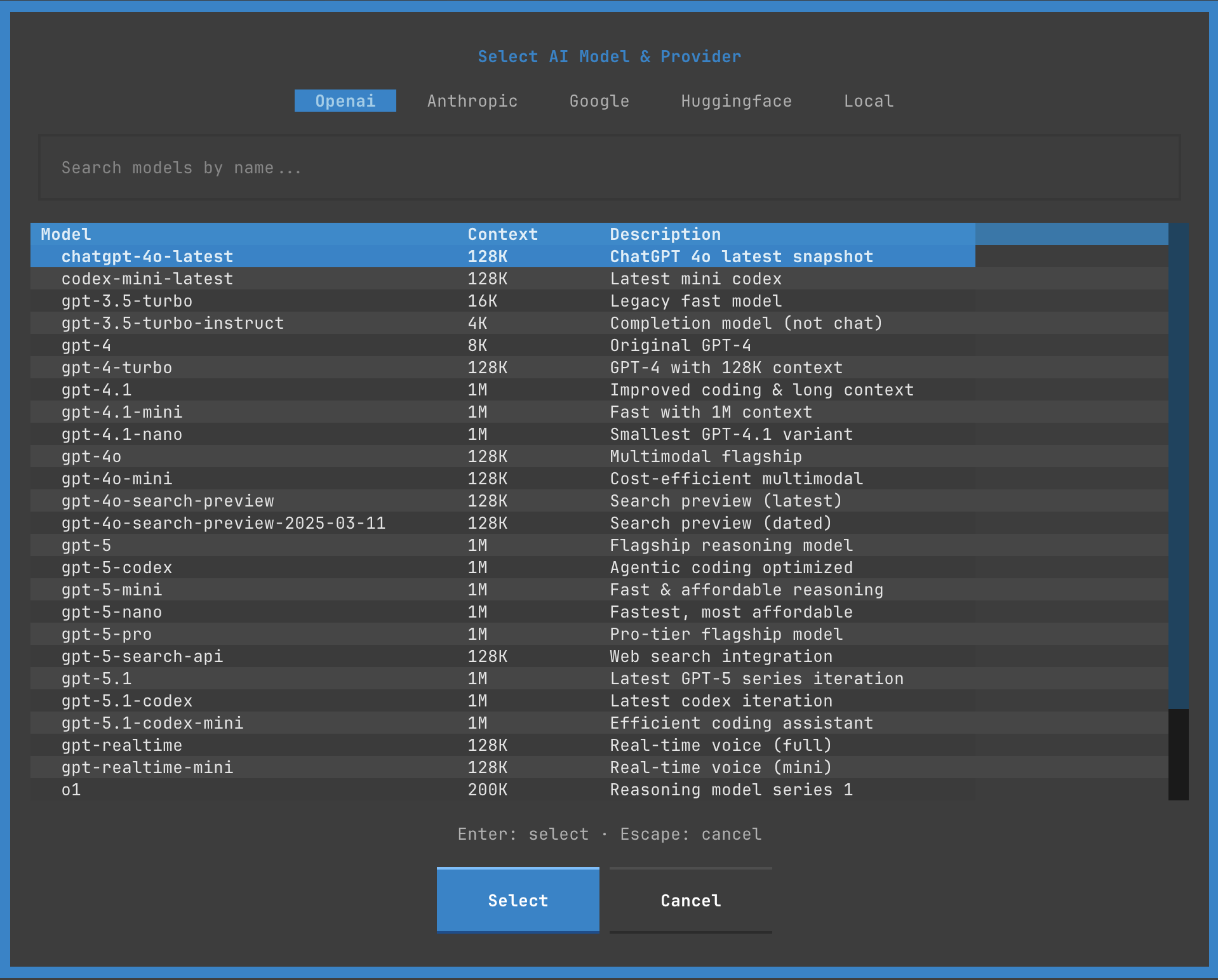
- gpt-4o
- gpt-4o-mini
- gpt-4-turbo
- gpt-4
- gpt-3.5-turbo
- o1-preview
- o1-mini
Google (Gemini)
- gemini-2.0-flash-exp
- gemini-1.5-pro
- gemini-1.5-flash
- gemini-1.0-pro
Local (Ollama)
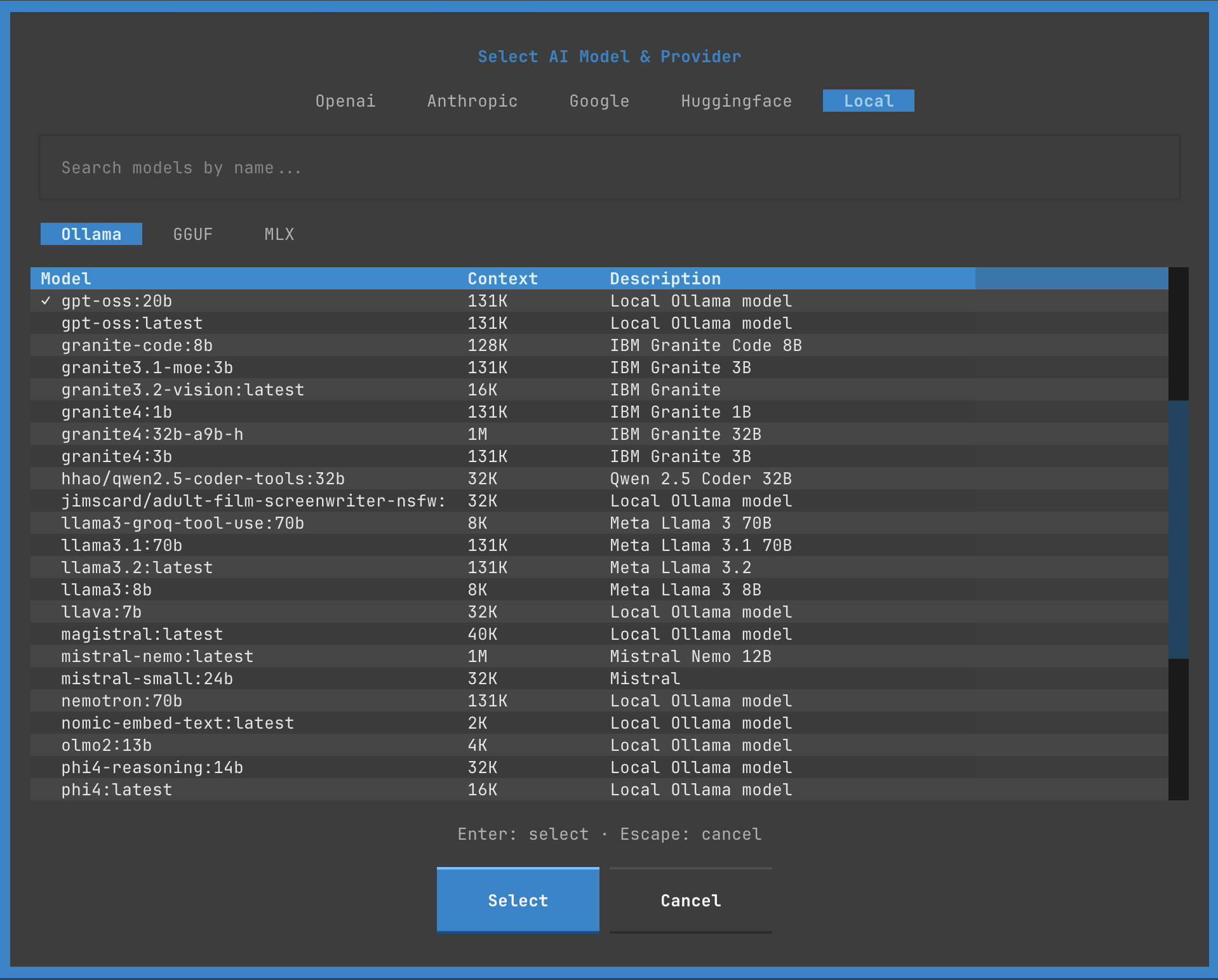
- Lists locally installed Ollama models
- Shows model size and quantization
- Auto-detects available models
Model Information
Each model shows:
| Column | Description |
|---|---|
| Model | Full model identifier |
| Context | Context window size (e.g., 200K tokens) |
| Description | Model capabilities and use cases |
Search
Filter models by name:
- Focus search bar (
/or click) - Type model name or keyword
- Results filter in real-time
- Clear with
Esc
Search Examples:
- "sonnet" → Claude Sonnet models
- "4o" → GPT-4o variants
- "flash" → Gemini Flash models
- "7b" → 7 billion parameter local models
Selection
Keyboard:
1. Navigate with ↑ ↓
2. Switch tabs with Tab or 1-5
3. Press Enter to select
4. Press Esc to cancel
Mouse:
1. Click provider tab
2. Click model row
3. Click Select button
Configuration
Selected model is saved:
Settings Modal
Configure TUI appearance and behavior.

Opening the Modal
Methods:
- Press
^comma(Ctrl+,) - Click settings icon (⚙️) in header
Settings Tabs
1. Appearance
╔═══════════════════════════════════════════╗
║               Settings                    ║
╠═══════════════════════════════════════════╣
║ [Appearance] Performance  Behavior  Adv.. ║
╠═══════════════════════════════════════════╣
║                                           ║
║ Theme:                                    ║
║     ▼ Consoul Dark ▼                     ║
║                                           ║
║ Show Sidebar:                             ║
║     ☑ Enabled                            ║
║                                           ║
║ Show Timestamps:                          ║
║     ☑ Enabled                            ║
║                                           ║
║ Show Token Count:                         ║
║     ☑ Enabled                            ║
║                                           ║
║ Input Syntax Highlighting:                ║
║     ☑ Enabled                            ║
║                                           ║
╠═══════════════════════════════════════════╣
║ Saving to global config: config.yaml     ║
╠═══════════════════════════════════════════╣
║        [Apply]  [Reset]  [Cancel]        ║
╚═══════════════════════════════════════════╝
Options:
- Theme: Choose from available themes (dropdown)
- Show Sidebar: Toggle conversation list visibility
- Show Timestamps: Display message timestamps
- Show Token Count: Display token usage metrics
- Input Syntax Highlighting: Highlight code in input
2. Performance
Performance Settings:

• Stream Tokens:          ☑ Enabled
• Async Rendering:        ☑ Enabled
• Virtual Scrolling:      ☑ Enabled
• Cache Conversations:    ☑ Enabled
• Max Cached:             [50]
• Lazy Load Threshold:    [100] messages
Options:
- Stream Tokens: Real-time streaming vs batch display
- Async Rendering: Non-blocking UI updates
- Virtual Scrolling: Render only visible messages
- Cache Conversations: Keep recent conversations in memory
- Max Cached: Number of conversations to cache
- Lazy Load Threshold: Messages before lazy loading kicks in
3. Behavior
Behavior Settings:

• Auto-save Conversations:     ☑ Enabled
• Confirm on Quit:             ☑ Enabled
• Confirm on Clear:            ☑ Enabled
• Auto-scroll to New:          ☑ Enabled
• Tool Execution Sound:        ☐ Disabled
• Error Notifications:         ☑ Enabled
• Auto-generate Titles:        ☑ Enabled
Options:
- Auto-save Conversations: Save after each message
- Confirm on Quit: Prompt before quitting
- Confirm on Clear: Prompt before clearing conversation
- Auto-scroll to New: Auto-scroll on new messages
- Tool Execution Sound: Beep on tool execution (future)
- Error Notifications: Show error toasts
- Auto-generate Titles: Generate conversation titles
4. Advanced
Advanced Settings:

• Debug Mode:                  ☐ Disabled
• Log Level:                   ▼ INFO ▼
• API Timeout:                 [30] seconds
• Max Retries:                 [3]
• Conversation History Limit:  [100] messages
• Tool Approval Timeout:       [60] seconds
Options:
- Debug Mode: Enable verbose logging
- Log Level: DEBUG, INFO, WARNING, ERROR
- API Timeout: Seconds before timeout
- Max Retries: API retry attempts
- Conversation History Limit: Max messages in context
- Tool Approval Timeout: Seconds to approve/deny tools
Saving Settings
Scope:
Settings saved to:
Actions:
- Apply: Save and apply changes
- Reset: Reset to defaults
- Cancel: Discard changes and close
Tool Manager
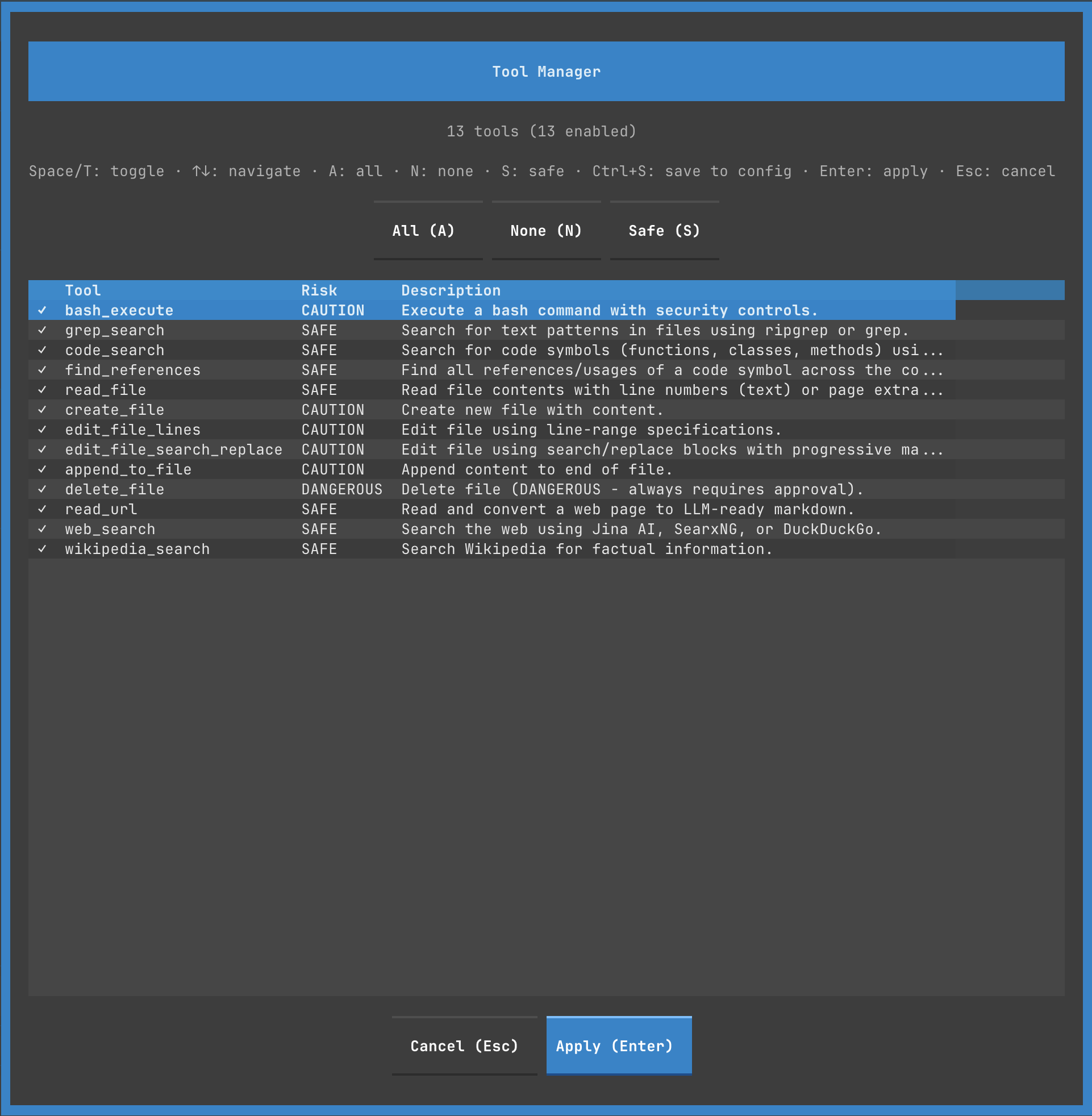
Manage AI tool permissions and configuration.
Opening the Modal
Methods:
- Press
^t - Press
shift+^p(Permissions) - Footer shortcut
Layout
╔═══════════════════════════════════════════════════════════════════╗
║                        Tool Manager                               ║
╠═══════════════════════════════════════════════════════════════════╣
║ 13 tools (13 enabled)                                            ║
╠═══════════════════════════════════════════════════════════════════╣
║ Space/T: toggle · ↑↓: navigate · A: all · N: none · S: safe ·   ║
║ Ctrl+S: save to config · Enter: apply · Esc: cancel              ║
╠═══════════════════════════════════════════════════════════════════╣
║           [All (A)]  [None (N)]  [Safe (S)]                      ║
╠═══════════════════════════════════════════════════════════════════╣
║ Tool             Risk        Description                          ║
║ ━━━━━━━━━━━━━━━━━━━━━━━━━━━━━━━━━━━━━━━━━━━━━━━━━━━━━━━━━━━━━━ ║
║ ☑ bash_execute   CAUTION     Execute a bash command with...      ║
║ ☑ grep_search    SAFE        Search for text patterns in...      ║
║ ☑ code_search    SAFE        Search for code symbols (func...    ║
║ ☑ find_ref...    SAFE        Find all references/usages of...    ║
║ ☑ read_file      SAFE        Read file contents with line...     ║
║ ☑ create_file    CAUTION     Create new file with content.      ║
║ ☑ edit_file...   CAUTION     Edit file using line-range...       ║
║ ☑ edit_file...   CAUTION     Edit file using search/replace...   ║
║ ☑ append_to...   CAUTION     Append content to end of file.     ║
║ ☑ delete_file    DANGEROUS   Delete file (DANGEROUS - alwa...    ║
║ ☑ read_url       SAFE        Read and convert a web page to...   ║
║ ☑ web_search     SAFE        Search the web using Jina AI...    ║
║ ☑ wikipedia...   SAFE        Search Wikipedia for factual...     ║
╠═══════════════════════════════════════════════════════════════════╣
║                  [Cancel (Esc)]  [Apply (Enter)]                 ║
╚═══════════════════════════════════════════════════════════════════╝
Tool List
Each tool shows:
| Column | Description |
|---|---|
| Checkbox | ☑ Enabled / ☐ Disabled |
| Tool Name | Function identifier |
| Risk Level | SAFE / CAUTION / DANGEROUS / BLOCKED |
| Description | What the tool does |
Risk Levels
| Level | Color | Approval Required | Description |
|---|---|---|---|
| SAFE | Green | No | Read-only, no system changes |
| CAUTION | Yellow | Yes | Modifies files, needs review |
| DANGEROUS | Red | Always | Destructive operations |
| BLOCKED | Gray | N/A | Never allowed to execute |
Tool Categories
File Operations:
- read_file (SAFE)
- create_file (CAUTION)
- edit_file_lines (CAUTION)
- edit_file_search_replace (CAUTION)
- append_to_file (CAUTION)
- delete_file (DANGEROUS)
Search & Discovery:
- grep_search (SAFE)
- code_search (SAFE)
- find_references (SAFE)
Execution:
- bash_execute (CAUTION)
Web & Information:
- read_url (SAFE)
- web_search (SAFE)
- wikipedia_search (SAFE)
Quick Actions
Preset Configurations:
[All (A)]   → Enable all tools (13/13)
[None (N)]  → Disable all tools (0/13)
[Safe (S)]  → Enable only SAFE tools (6/13)
Keyboard Shortcuts:
SpaceorT: Toggle selected toolA: Enable all toolsN: Disable all toolsS: Enable only SAFE tools^s: Save to config file
Tool Details
Click or press Space on a tool to see details (future):
╔═══════════════════════════════════════════╗
║        Tool Details: bash_execute         ║
╠═══════════════════════════════════════════╣
║                                           ║
║ Risk Level: CAUTION                       ║
║                                           ║
║ Description:                              ║
║ Execute a bash command with security      ║
║ controls. Requires user approval for      ║
║ potentially dangerous operations.         ║
║                                           ║
║ Parameters:                               ║
║ • command (str): Shell command to run     ║
║                                           ║
║ Approval Required: Yes                    ║
║                                           ║
║ Examples:                                 ║
║ • ls -la                                  ║
║ • git status                              ║
║ • python script.py                        ║
║                                           ║
║                  [Close]                  ║
╚═══════════════════════════════════════════╝
Saving Configuration
Temporary (Session Only):
- Click
Applyor pressEnter - Tools enabled/disabled for this session
- Reset on restart
Permanent (Config File):
- Press
^sor clickSave to Config - Writes to
config.yaml:
tools:
  enabled:
    - bash_execute
    - grep_search
    - code_search
    - read_file
    # ... only enabled tools listed
File Attachment Browser
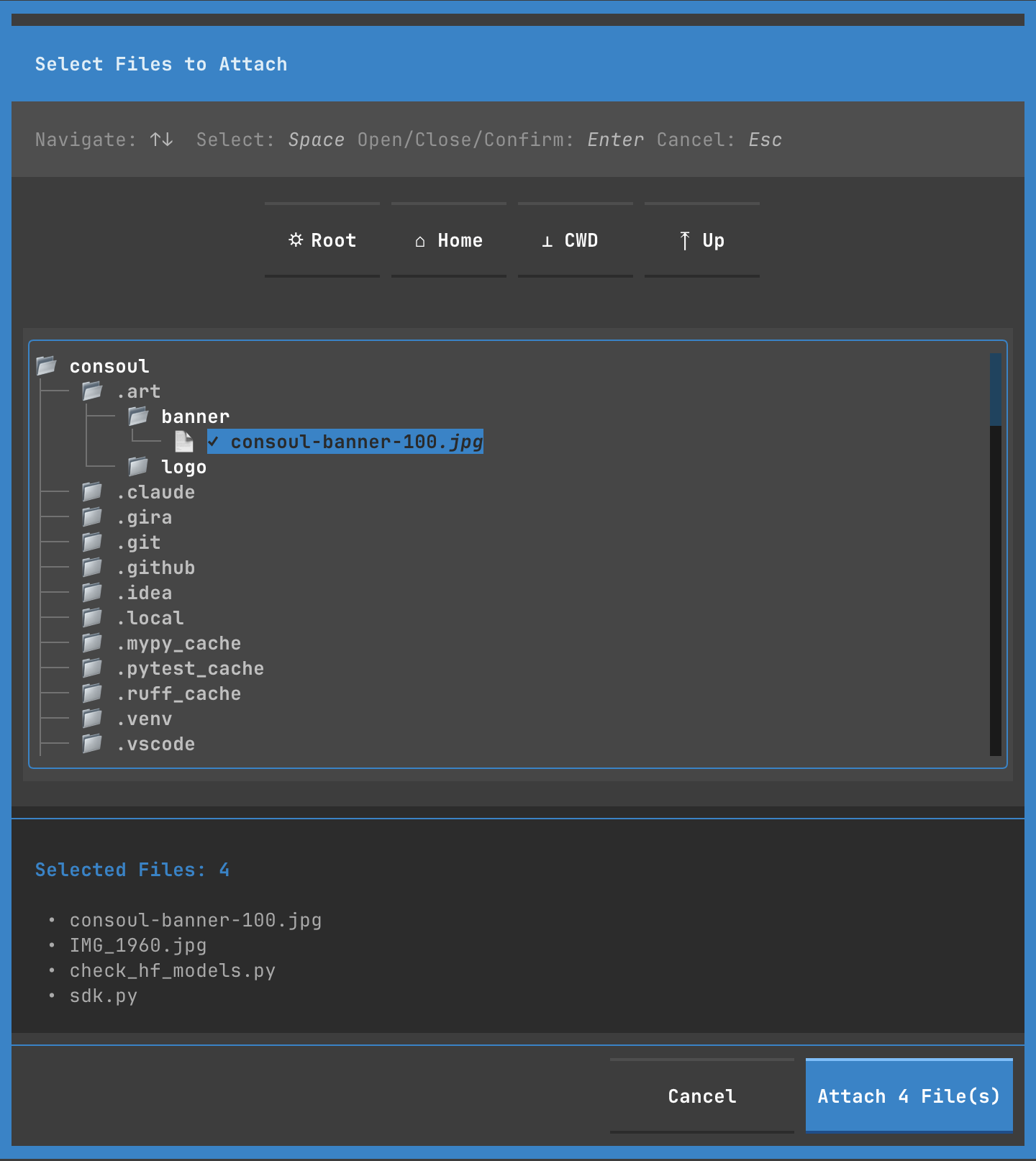
Select files to attach to messages.
Opening the Modal
Methods:
- Click
+ Attachbutton in input area
Layout
╔═══════════════════════════════════════════════════════════╗
║              Select Files to Attach                       ║
╠═══════════════════════════════════════════════════════════╣
║ Navigate: ↑↓ Select: Space Open/Close/Confirm: Enter     ║
║ Cancel: Esc                                               ║
╠═══════════════════════════════════════════════════════════╣
║  [✱ Root] [🏠 Home] [📁 CWD] [↑ Up]                      ║
╠═══════════════════════════════════════════════════════════╣
║ ┌───────────────────────────────────────────────────────┐ ║
║ │ 📁 consoul                                            │ ║
║ │   ├─ 📁 .art                                          │ ║
║ │   │   ├─ 📁 banner                                    │ ║
║ │   │   │   ✓ 📄 consoul-banner-100.jpg                │ ║
║ │   │   └─ 📁 logo                                      │ ║
║ │   ├─ 📁 .claude                                       │ ║
║ │   ├─ 📁 .gira                                         │ ║
║ │   ├─ 📁 .git                                          │ ║
║ │   ├─ 📁 .idea                                         │ ║
║ │   ├─ 📁 .local                                        │ ║
║ │   ├─ 📁 .mypy_cache                                   │ ║
║ │   ├─ 📁 .pytest_cache                                 │ ║
║ │   ├─ 📁 .ruff_cache                                   │ ║
║ │   ├─ 📁 .venv                                         │ ║
║ │   ├─ 📁 .vscode                                       │ ║
║ └─────────────────────────────────────────────────────┘ ║
╠═══════════════════════════════════════════════════════════╣
║ Selected Files: 4                                         ║
║ • consoul-banner-100.jpg                                  ║
║ • IMG_1960.jpg                                            ║
║ • check_hf_models.py                                      ║
║ • sdk.py                                                  ║
╠═══════════════════════════════════════════════════════════╣
║           [Cancel]  [Attach 4 File(s)]                    ║
╚═══════════════════════════════════════════════════════════╝
Navigation
Tree View:
↑↓: Move selection→orEnteron directory: Expand←orEnteron expanded: CollapseSpace: Toggle file selectionEnteron file: Toggle selection
Quick Jump:
- ✱ Root: Jump to filesystem root (
/) - 🏠 Home: Jump to home directory (
~) - 📁 CWD: Jump to current working directory
- ↑ Up: Navigate to parent directory
File Selection
Multi-Select:
1. Navigate with ↑ ↓
2. Press Space on each file
3. Selected files show ✓ checkmark
4. Selection count updates at bottom
Batch Selection:
^a: Select all visible files (future)^d: Deselect all (future)
File Display
Icons:
- 📁 Directory
- 📄 File
- ✓ Selected
Information:
- Nested tree structure
- Expandable/collapsible folders
- Selected count and file list at bottom
Confirmation
Attach Files:
- Click
Attach N File(s)button - Or press
Enter(confirms selection) - Files added as chips in input area
Cancel:
- Click
Cancel - Or press
Esc - No files attached
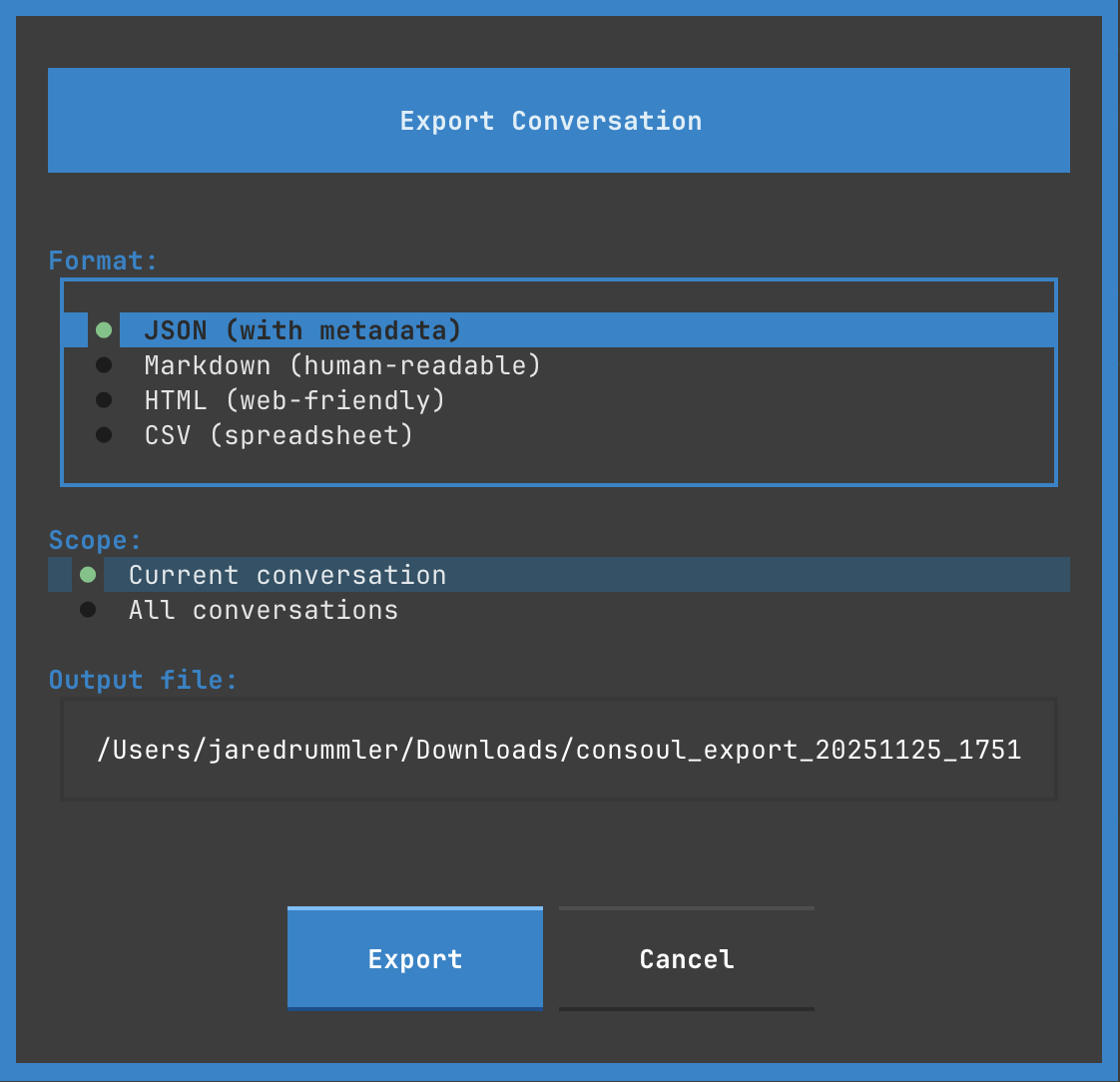
Export Dialog
Export conversation to file.
Opening the Modal
Methods:
- Press
^e - Footer shortcut
- Menu → Export (future)
Export Formats
Markdown (.md)
# Conversation Title

## User (16:13:59)
Message content...

## Assistant (16:14:02)
Response content...
JSON (.json)
{
  "id": "uuid",
  "title": "Conversation Title",
  "created": "2025-11-26T16:13:59Z",
  "messages": [...]
}
Plain Text (.txt)
Conversation: Title
Date: 2025-11-26

[User - 16:13:59]
Message...

[Assistant - 16:14:02]
Response...
Export Options
╔═══════════════════════════════════════════╗
║          Export Conversation              ║
╠═══════════════════════════════════════════╣
║                                           ║
║ Format:                                   ║
║   ◉ Markdown (.md)                       ║
║   ○ JSON (.json)                         ║
║   ○ Plain Text (.txt)                    ║
║                                           ║
║ Options:                                  ║
║   ☑ Include timestamps                   ║
║   ☑ Include token counts                 ║
║   ☑ Include tool calls                   ║
║   ☐ Include system messages              ║
║                                           ║
║ Filename:                                 ║
║   [conversation-2025-11-26.md]           ║
║                                           ║
║ Location:                                 ║
║   [~/Documents/]  [Browse...]            ║
║                                           ║
╠═══════════════════════════════════════════╣
║        [Export]    [Cancel]               ║
╚═══════════════════════════════════════════╝
Options:
- Include Timestamps: Add message times
- Include Token Counts: Add token metrics
- Include Tool Calls: Export tool executions
- Include System Messages: Export system events
- Filename: Custom output filename
- Location: Output directory
Keyboard Navigation
Tab: Move between optionsSpace: Toggle checkboxesm: Select Markdownj: Select JSONt: Select TextEnter: ExportEsc: Cancel
Profile Selector
Choose configuration profile (future feature).
Layout
╔═══════════════════════════════════════════╗
║          Select Profile                   ║
╠═══════════════════════════════════════════╣
║                                           ║
║ Profile          Description              ║
║ ━━━━━━━━━━━━━━━━━━━━━━━━━━━━━━━━━━━━━━ ║
║ ▶ default        Standard settings        ║
║   creative       High temperature, tools  ║
║   coding         Code-focused, tools      ║
║   research       Web search enabled       ║
║   safe           Read-only tools only     ║
║                                           ║
╠═══════════════════════════════════════════╣
║        [Select]    [Cancel]               ║
╚═══════════════════════════════════════════╝
Selection:
↑↓: NavigateEnter: Select profileEsc: Cancel
Profiles:
- default: Balanced settings
- creative: High temperature for brainstorming
- coding: Optimized for code generation
- research: Web tools enabled
- safe: Read-only tools only
Next Steps
- Keyboard Shortcuts - Master modal navigation
- Themes - Customize appearance
- Configuration - Configure settings
- Features - Explore TUI features