TUI Interface Guide
This guide provides a detailed walkthrough of every component in the Consoul Terminal User Interface.
Interface Overview
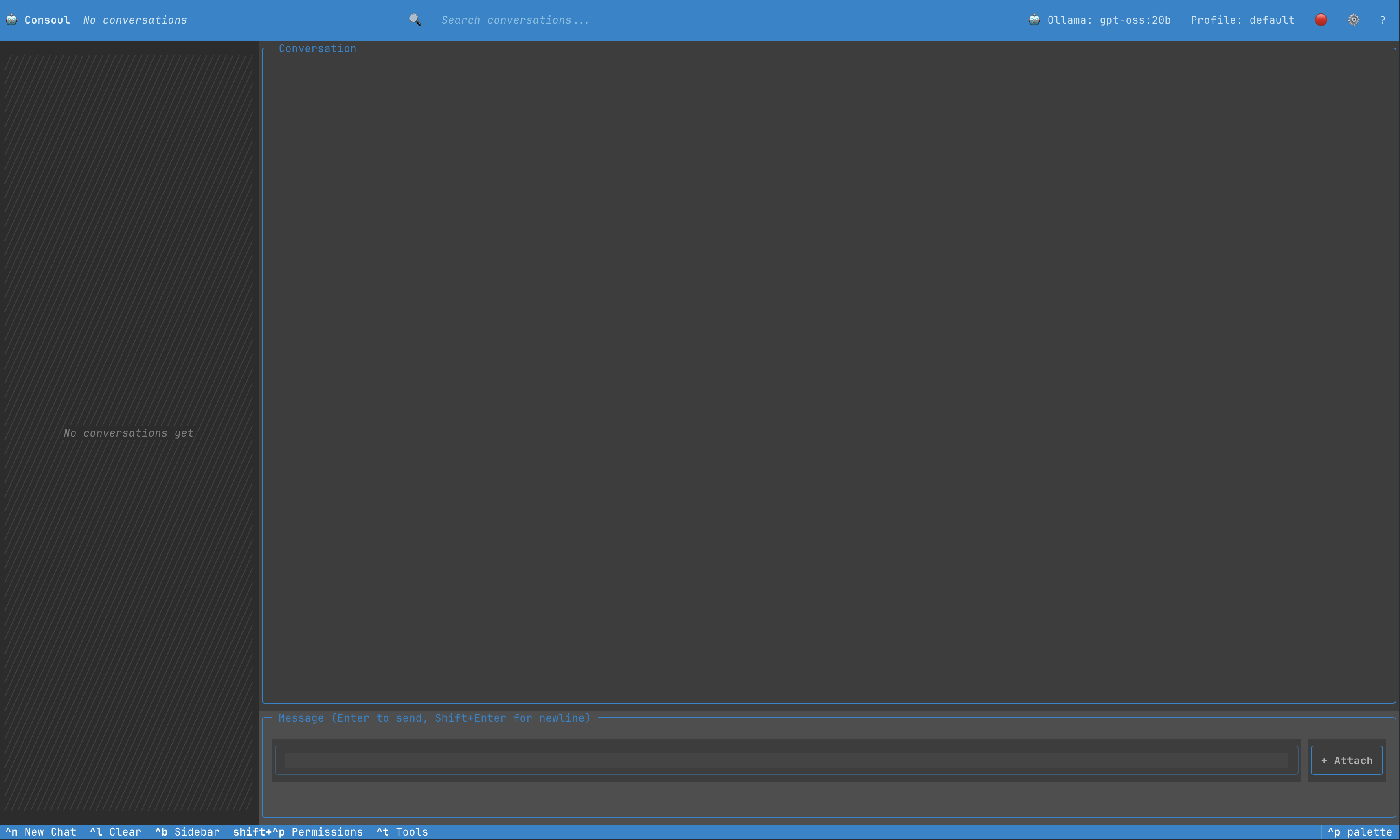
The Consoul TUI is organized into five main areas:
- Header Bar (top)
- Conversation Sidebar (left, toggleable)
- Chat Area (center)
- Input Area (bottom)
- Footer (very bottom)
1. Header Bar
The header bar spans the full width of the terminal and provides navigation and context information.
Components
App Icon & Name
- Click to toggle sidebar (same as clicking conversation count) - Brand identity and visual anchorConversation Count
- Shows total number of saved conversations - Click to toggle sidebar visibility - Updates in real-time as conversations are created/deletedSearch Bar
- Filter conversations by title - Auto-shows sidebar when search query is entered - Real-time filtering as you type - Clear withEsc or clear button
Model Indicator
- Shows currently selected provider and model - Click to open model selector modal - Format:Provider: model-name
Profile Indicator
- Shows active profile - Click to open profile selector - Profiles control behavior, tools, and settingsQuick Actions
- 🔴 Red Dot: Record/stop (future feature) - ⚙️ Settings: Open settings modal (^comma)
- ? Help: Show help/keyboard shortcuts
2. Conversation Sidebar
Toggleable sidebar showing all conversations as beautiful cards.
Empty State
When no conversations exist:
- Diagonal hatch pattern - Centered italic text - Automatically hidden when emptyConversation Cards
Each conversation is displayed as a card:
┌────────────────────────────┐
│ Poem from Project README   │
│                            │
│ Nov 26, 2025              │
└────────────────────────────┘
Card States
Default
- Gray background
- Blue left border
- Two-line title support (wraps automatically)
- Date in muted gray
Hover
- Lighter background
- Cyan accent border
- Enhanced visual feedback
Selected/Active
- Blue background
- Purple left border
- Bold text style
- Indicates current conversation
Sidebar Actions
- Click Card: Load that conversation
- Click Count: Toggle sidebar
- Search: Filter cards by title
- Scroll: Navigate through many conversations
Sidebar Behavior
- Minimum width: 20 characters
- Maximum width: 40 characters
- Default width: 20% of terminal
- Auto-shows when searching
- Persists state (visible/hidden) in config
3. Chat Area
The main conversation display area showing message history.
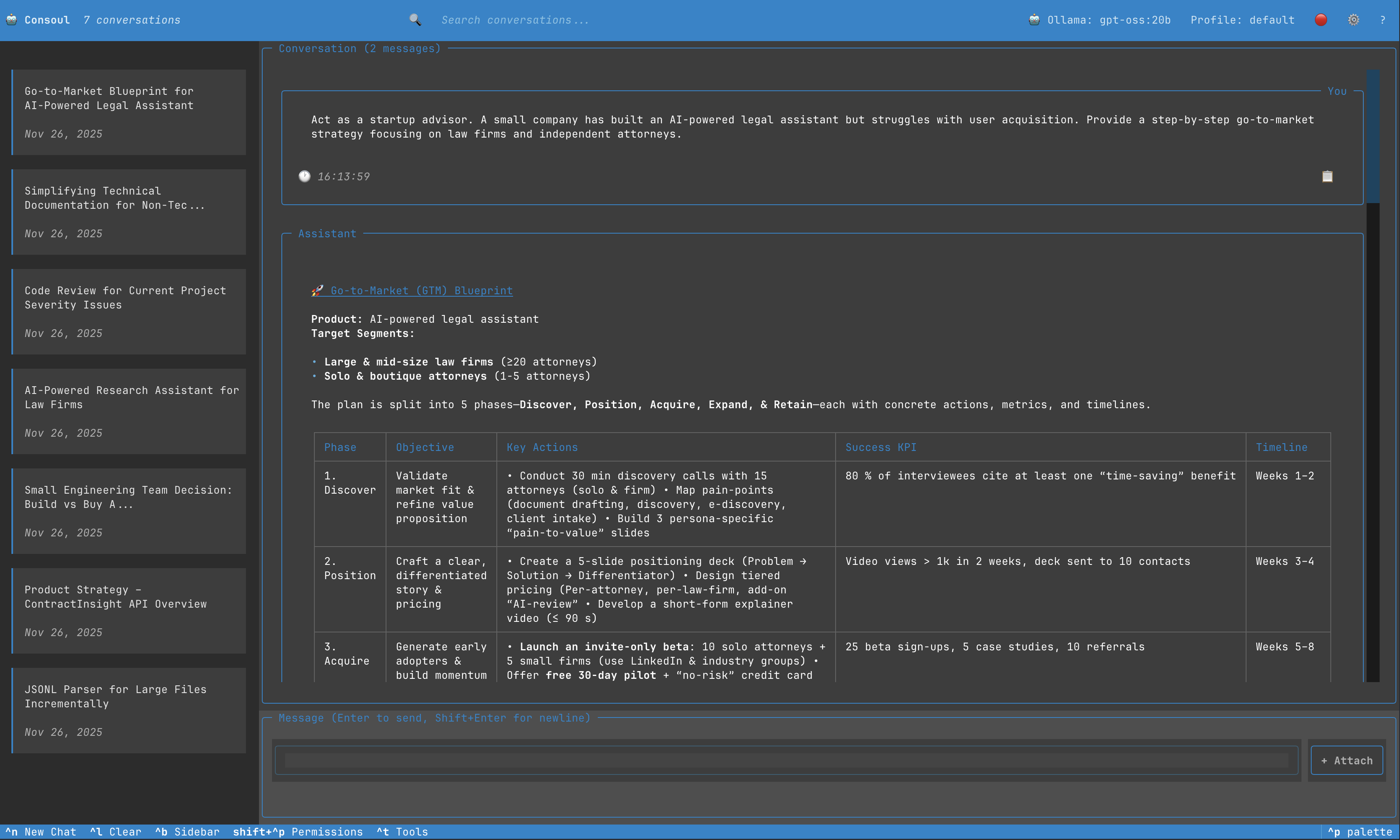
Layout
╔══════════════════════════════════════════╗
║ Conversation (2 messages)                ║
╠══════════════════════════════════════════╣
║                                          ║
║  ┌─ You ────────────────────────────┐  ║
║  │ Write a poem...                   │  ║
║  │ ⏱ 16:13:59                  📋 ⎘  │  ║
║  └───────────────────────────────────┘  ║
║                                          ║
║  ┌─ Assistant ──────────────────────┐  ║
║  │ In terminal's grace, a chat...   │  ║
║  │                                   │  ║
║  │ ⏱ 17:00:11 | 34.16 tok/sec       │  ║
║  │             187 tokens            │  ║
║  │ 🔧 📋 ⎘                          │  ║
║  └───────────────────────────────────┘  ║
║                                          ║
╚══════════════════════════════════════════╝
Message Bubbles
All messages are displayed as bordered containers with metadata.
User Messages
┌─ You ──────────────────────────────────┐
│ What files are in the current directory?│
│                                          │
│ ⏱ 14:23:45                         📋  ⎘│
└──────────────────────────────────────────┘
Characteristics:
- Blue border (primary color)
- Title aligned right: "You"
- Timestamp in bottom left
- Copy button (📋) in bottom right
- Branch button (⎘) for conversation branching
Assistant Messages
┌─ Assistant ────────────────────────────┐
│ Here are the files:                    │
│                                        │
│ - main.py                              │
│ - config.yaml                          │
│ - README.md                            │
│                                        │
│ ⏱ 14:23:48 | 45.2 tok/sec | 28 tokens│
│ 🔧 📋 ⎘                               │
└────────────────────────────────────────┘
Characteristics:
- Purple border (secondary color #44385E)
- Title aligned left: "Assistant"
- Markdown rendering
- Syntax highlighting for code blocks
- Token metrics (if enabled)
- Tools button (🔧) to show tool calls
- Copy and branch buttons
System Messages
┌─ System ───────────────────────────────┐
│ ⚙️ Executing: read_file                │
└────────────────────────────────────────┘
Characteristics:
- Muted border and colors
- Lighter background
- Icon-based status indicators
- Compact display
Error Messages
┌─ Error ────────────────────────────────┐
│ ❌ Failed to execute command           │
│                                        │
│ Permission denied: /etc/shadow         │
└────────────────────────────────────────┘
Characteristics:
- Red background
- Thick yellow border
- Error icon
- Error details
Tool Call Widgets
Tool executions are shown as special expandable widgets:

┌─ System ──────────────────────┐
│ 🔧 Executing: read_file       │
└───────────────────────────────┘

┌─ System ──────────────────────┐
│ 🔧 Executing: create_file     │
└───────────────────────────────┘
Tool Status Colors
| Status | Border Color | Indicator |
|---|---|---|
| Pending | Yellow/Amber | ⏳ |
| Executing | Blue/Primary | ⚙️ |
| Success | Green | ✅ |
| Error | Red (thick) | ❌ |
| Denied | Gray/Muted | 🚫 |
Tool Widget Structure
┌─ Tool: bash_execute ──────────────────┐
│ 🔧 bash_execute                        │
│                                        │
│ Arguments:                             │
│ {                                      │
│   "command": "ls -la"                  │
│ }                                      │
│                                        │
│ Status: ✅ Success                     │
│                                        │
│ Output:                                │
│ total 48                               │
│ drwxr-xr-x  12 user  staff  384 Nov 25│
│ -rw-r--r--   1 user  staff  1.2K README│
│ ...                                    │
└────────────────────────────────────────┘
Thinking Indicators
When the AI is processing (extended thinking):
┌─ Thinking... ─────────────────┐
│ Analyzing the code...          │
│                                │
│ ⚙️ ⚙️ ⚙️                      │
└────────────────────────────────┘
Features:
- Dashed blue border
- Animated dots
- Real-time streaming of thinking content
- Collapsible after completion
Markdown Rendering
Assistant messages support rich markdown:
- Headers (H1-H6)
- Lists (ordered, unordered, nested)
- Code Blocks (with syntax highlighting)
- Inline Code (
code) -
Tables
-
Links
-
Emphasis (italic, bold)
- Blockquotes
Code Blocks
┌─ Python ───────────────────────┐
│ def fibonacci(n):              │
│     if n <= 1:                 │
│         return n               │
│     return fib(n-1) + fib(n-2) │
└────────────────────────────────┘
Features:
- Language detection
- Syntax highlighting (Pygments)
- Line numbers (optional)
- Copy button
- Scrollable for long code
4. Input Area
Multi-line text input with file attachment support.
Components
╔══════════════════════════════════════════╗
║ Message (Enter to send, Shift+Enter for  ║
║ newline)                                  ║
╠══════════════════════════════════════════╣
║ ┌────────────────────────────────────┐  ║
║ │ Your message here...                │  ║
║ │                                      │  ║
║ └────────────────────────────────────┘  ║
║                                          ║
║ [main.py ×] [config.yaml ×]     [+ Attach]║
╚══════════════════════════════════════════╝
Text Area
- Multi-line support (up to 10 lines)
- Auto-scroll on overflow
- Syntax highlighting for code (if enabled)
- Blue border (primary color)
- Focus indicator (30% opacity border)
File Chips
Attached files shown as removable chips:
Features:
- File icon
- Filename
- Remove button (×)
- Hover effects
- Auto-wrap to multiple lines
Attach Button
- Opens file browser modal
- Click to open file browser
- Hover effect (lighter background)
Input Behavior
Enter: Send messageShift+Enter: New line- Click
+ Attach: Open file browser modal - Auto-focus after sending
- History preserved per conversation
5. Footer
Quick keyboard shortcuts and status bar.
Footer Elements
Each shows a keyboard shortcut and action:
| Shortcut | Label | Action |
|---|---|---|
q |
Quit | Exit Consoul |
^n |
New Chat | Create new conversation |
^l |
Clear | Clear current conversation |
^e |
Export | Export conversation |
^b |
Sidebar | Toggle sidebar |
shift+^p |
Permissions | Open permissions/tool manager |
^t |
Tools | Open tool manager |
^comma |
Settings | Open settings (Ctrl+,) |
Footer Styling
- Background: Primary color (Sky Blue #0085CC)
- Text: White
- Shortcut keys: Bold, same color as text
- Auto-wraps on narrow terminals
Responsive Layout
The TUI adapts to different terminal sizes:
Minimum Size
- Width: 80 characters
- Height: 24 lines
- Sidebar auto-hides below 100 chars width
Recommended Size
- Width: 120+ characters
- Height: 40+ lines
- Full feature visibility
Maximum Utilization
- Sidebar: Max 40 chars width
- Chat area: Remaining space
- Input: Max 10 lines height
- All components scale proportionally
Color Scheme
The interface uses theme-based colors:
Consoul Dark (Default)
- Background: #2A2A2A (dark gray)
- Surface: #3D3D3D (Binary Slate)
- Primary: #0085CC (Sky Blue)
- Secondary: #44385E (Deep Purple)
- Text: #FFFFFF (Pure White)
- Muted: #9BA3AB (Light Gray)
Consoul Light
- Background: #FFFFFF (Pure White)
- Surface: #F8F9FA (Very Light Gray)
- Primary: #0085CC (Sky Blue)
- Secondary: #3D3D3D (Binary Slate)
- Text: #3D3D3D (Binary Slate)
- Muted: #6C757D (Gray)
Accessibility
Keyboard Navigation
- All actions accessible via keyboard
- Visible focus indicators
- No mouse required
Visual Indicators
- Color is never the only indicator
- Icons supplement color-coded statuses
- Borders and styling for clarity
Performance
- Efficient rendering (only visible elements)
- Smooth scrolling
- Responsive even with long conversations
Next Steps
- TUI Features - Deep dive into functionality
- Keyboard Shortcuts - Complete shortcut reference
- Themes - Customize appearance
- Configuration - Configure TUI settings