TUI Features
This guide explores the powerful features available in the Consoul Terminal User Interface.
Conversation Management
Creating Conversations
Every time you start Consoul or press ^n, a new conversation begins.
Features:
- Unlimited conversations
- Automatic persistence
- Context maintained across messages
- Auto-generated titles after first exchange
Conversation Titles
Conversations are automatically titled based on content:
Title Generation:
- Triggered after first AI response
- Based on conversation content and intent
- Updates conversation card in sidebar
- Can be manually renamed (future feature)
Switching Conversations
Via Sidebar:
1. Toggle sidebar with ^b or click conversation count
2. Click any conversation card
3. Previous conversation is saved automatically
Via Keyboard:
^n: New conversation- Navigate sidebar with arrow keys (when focused)
Searching Conversations
Find conversations quickly:
- Click or focus the search bar (🔍)
- Type search query
- Sidebar auto-shows with filtered results
- Clear search with
Esc
Search Features:
- Real-time filtering
- Case-insensitive
- Searches conversation titles
- Updates as you type
Deleting Conversations
Currently via config file (UI coming soon):
Message Features
Streaming Responses
AI responses stream in real-time:
Indicators:
- Blinking cursor during streaming
- Character-by-character display
- Syntax highlighting updates live
- Token rate displayed after completion
Message Metadata
Each message includes rich metadata:
Metadata Components:
- Timestamp (toggleable)
- Tokens per second
- Total token count (toggleable)
- Time to first token
- Cost (if available)
Copying Messages
Copy message content to clipboard:
- Click the copy button (📋) on any message
- Or use keyboard shortcut when message focused
- Confirmation feedback shown
- Includes formatted text (markdown preserved)
Branching Conversations
Future Feature: Create alternate conversation paths from any point in a conversation. This feature is planned but not yet implemented.
Tool Execution
Visual Tool Calls
Tool executions are displayed as interactive widgets:

┌─ System ──────────────────────┐
│ 🔧 Executing: read_file       │
│                                │
│ Arguments:                     │
│ {                              │
│   "file_path": "README.md"     │
│ }                              │
│                                │
│ Status: ✅ Success             │
│                                │
│ Output:                        │
│ # Consoul                      │
│ ...                            │
└────────────────────────────────┘
Tool Status Lifecycle
Tools progress through states:
- Pending (⏳ Yellow) - Tool call received, awaiting approval
- Executing (⚙️ Blue) - Tool is running
- Success (✅ Green) - Completed successfully
- Error (❌ Red) - Failed with error
- Denied (🚫 Gray) - User denied execution
Tool Approval Workflow
For CAUTION and DANGEROUS tools:
┌─ Tool Approval Required ──────────────┐
│                                        │
│ 🔧 bash_execute                        │
│                                        │
│ Command: rm -rf /tmp/cache             │
│                                        │
│ ⚠️ Risk Level: CAUTION                 │
│                                        │
│ Allow this tool to execute?            │
│                                        │
│ [Approve]  [Deny]  [View Details]     │
└────────────────────────────────────────┘
Approval Options:
- Approve: Execute this time only
- Deny: Reject execution
- View Details: See tool description and arguments
- Always Allow: Add to whitelist (future)
Tool Output
Tool results are shown directly in the widget:
Features:
- Syntax highlighting for code output
- Scrollable for long output
- Expandable/collapsible
- Copy button for output
File Attachments
Attaching Files
Add context files to your messages:
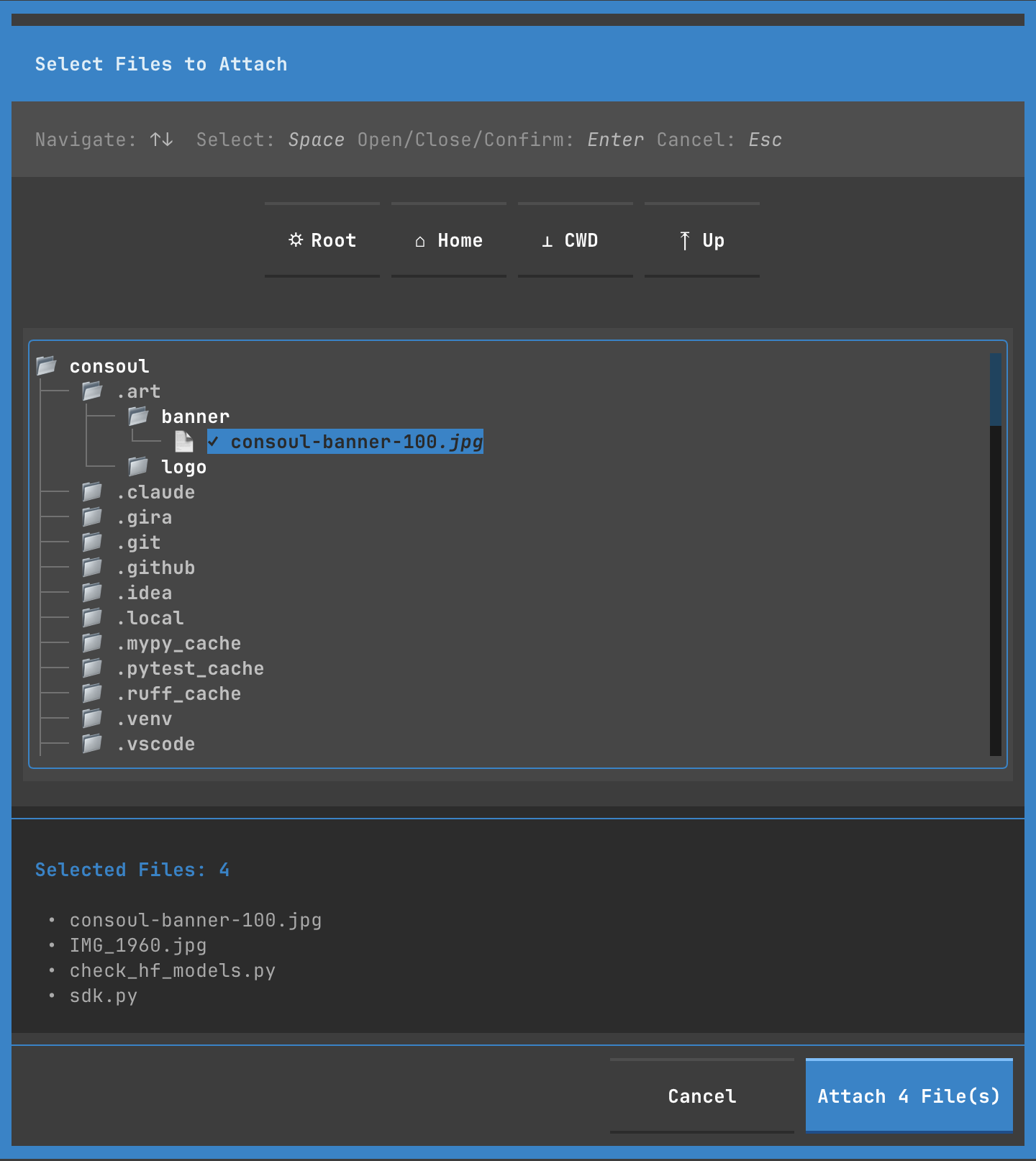
Methods:
1. Click + Attach button in input area
2. Select files in browser modal
File Browser
Navigate filesystem to select files:
┌─ Select Files to Attach ──────────────┐
│                                        │
│ Navigate: ↑↓  Select: Space           │
│ Open/Close/Confirm: Enter             │
│                                        │
│ ✱ Root  🏠 Home  📁 CWD  ↑ Up        │
│                                        │
│ ┌──────────────────────────────────┐ │
│ │ 📁 consoul                        │ │
│ │   📁 .art                         │ │
│ │   📁 .git                         │ │
│ │   📁 src                          │ │
│ │   ✓ 📄 README.md                 │ │
│ │   ✓ 📄 pyproject.toml            │ │
│ └──────────────────────────────────┘ │
│                                        │
│ Selected Files: 2                      │
│ • README.md                            │
│ • pyproject.toml                       │
│                                        │
│ [Cancel]  [Attach 2 File(s)]          │
└────────────────────────────────────────┘
Navigation:
- ↑↓: Move up/down
- →: Expand directory
- ←: Collapse directory
- Space: Toggle file selection
- Enter: Open directory or confirm
- Esc: Cancel
Quick Jump:
- ✱ Root: Navigate to
/ - 🏠 Home: Navigate to
~ - 📁 CWD: Navigate to current working directory
- ↑ Up: Go to parent directory
File Chips
Selected files shown as chips in input area:
Chip Actions:
- Click
×to remove file - Hover for highlight
- Auto-wrap to multiple lines if needed
File Context
Attached files are sent with your message:
Processing:
- File contents read automatically
- Syntax detection
- Included in AI context
- Token count includes file content
Display Settings
Timestamps
Toggle message timestamps:
Settings → Appearance → Show Timestamps
- On: Show timestamp on every message
- Off: Hide timestamps (cleaner UI)
Token Counts
Toggle token usage display:
Settings → Appearance → Show Token Count
- On: Show tokens, rate, and metrics
- Off: Hide token information
Sidebar Visibility
Toggle conversation list sidebar:
Methods:
- Click conversation count in header
- Press
^b - Click search bar (auto-shows)
- Settings → Appearance → Show Sidebar
Behavior:
- Persisted across sessions
- Auto-hides when empty
- Auto-shows on search
- Smooth animation
Syntax Highlighting
Toggle code syntax highlighting:
Settings → Appearance → Input Syntax Highlighting
- On: Highlight code in input area
- Off: Plain text (faster on slow terminals)
Features:
- Python, JavaScript, Shell, and more
- Auto-detection
- Theme-aware colors
Performance Features
Efficient Rendering
The TUI only renders visible elements:
- Virtual scrolling for long conversations
- Lazy loading of conversation list
- Incremental updates during streaming
- Optimized redraws
Token Streaming
Responses stream efficiently:
- Real-time display
- Minimal latency
- Smooth scrolling
- Auto-scroll to latest
Caching
Conversations cached in memory:
- Fast switching
- Instant load of recent conversations
- Periodic persistence to disk
- Automatic cleanup of old conversations
Export Features
Export conversations to various formats:
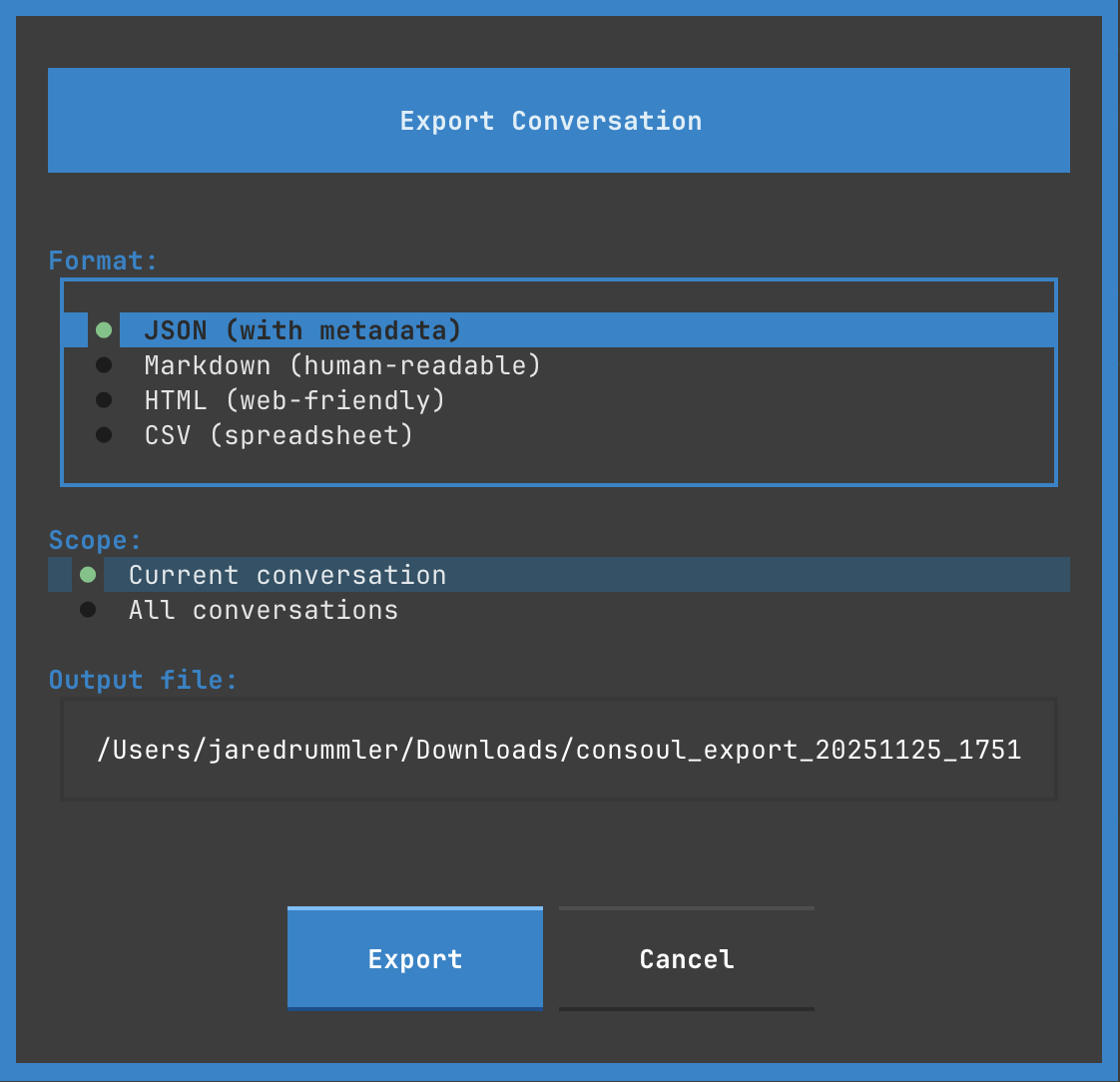
Export Formats
Markdown (.md)
# Conversation: Debugging Python Import Error

## User (16:13:59)
I'm getting an import error...

## Assistant (16:14:02)
Let me help you debug...
JSON (.json)
{
  "conversation_id": "uuid",
  "title": "Debugging Python Import Error",
  "messages": [
    {
      "role": "user",
      "content": "I'm getting...",
      "timestamp": "2025-11-26T16:13:59Z"
    }
  ]
}
Text (.txt)
Conversation: Debugging Python Import Error
Date: 2025-11-26

[User - 16:13:59]
I'm getting an import error...

[Assistant - 16:14:02]
Let me help you debug...
Export Options
- Include/exclude metadata
- Include/exclude timestamps
- Include/exclude tool calls
- Include/exclude system messages
- Custom filename
Advanced Features
Thinking Display
Extended reasoning shown during generation:
┌─ Thinking... ─────────────────┐
│ Let me analyze the error...    │
│                                │
│ The traceback shows...         │
│                                │
│ ⚙️ ⚙️ ⚙️                      │
└────────────────────────────────┘
Features:
- Real-time streaming of thoughts
- Collapsible after completion
- Dashed border for distinction
- Italic muted text
Multi-turn Context
Context maintained across messages:
User: What files are in /tmp?
Assistant: [Lists files]

User: Delete the cache files
Assistant: [Remembers previous /tmp context]
Features:
- Automatic context window management
- Conversation history included
- Tool results preserved
- File attachments remembered
Error Handling
Graceful error display:
┌─ Error ────────────────────────┐
│ ❌ API Request Failed          │
│                                │
│ Rate limit exceeded            │
│ Retry after 60 seconds         │
│                                │
│ [Retry]  [Cancel]              │
└────────────────────────────────┘
Error Types:
- API errors (rate limit, auth, network)
- Tool execution errors
- File I/O errors
- Validation errors
Auto-save
Conversations automatically saved:
- After each message
- On conversation switch
- On application quit
- On error/crash (recovery)
Location:
Keyboard-Driven Workflow
Power users can work entirely via keyboard:
^n               → New conversation
Type message     → Compose
Enter            → Send
^f               → Attach files
Space            → Select files
Enter            → Confirm
Tab              → Cycle through UI
^s               → Settings
^b               → Toggle sidebar
q                → Quit
Next Steps
- Keyboard Shortcuts - Master keyboard navigation
- Modals & Dialogs - Settings, tools, model selection
- Themes - Customize appearance
- Configuration - Configure behavior