Terminal User Interface (TUI)
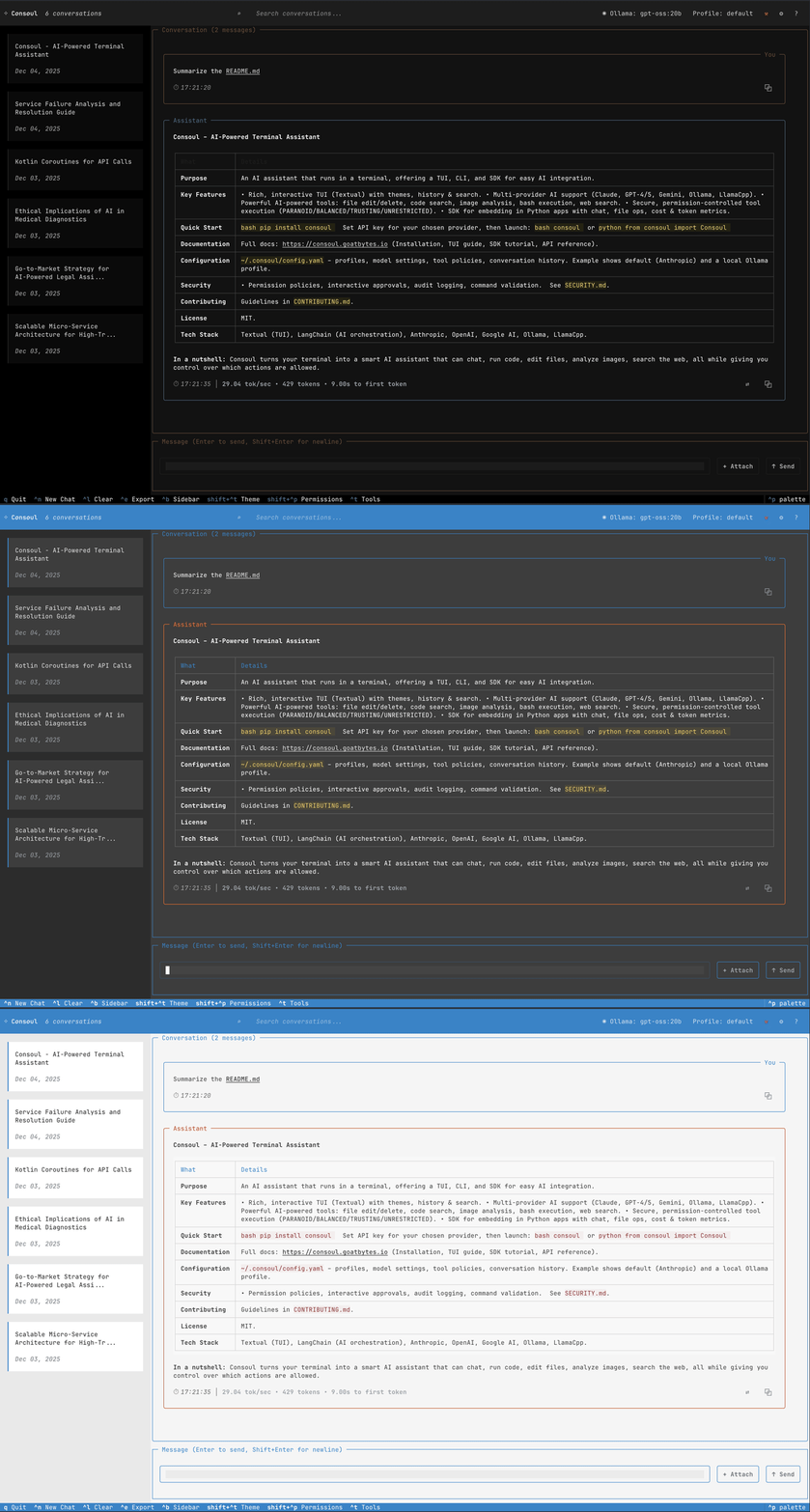
Consoul's Terminal User Interface provides a rich, interactive chat experience directly in your terminal. Built with Textual, it offers a modern, responsive interface similar to ChatGPT or Claude, but with the convenience and power of staying in your command-line workflow.
Why Use the TUI?
The TUI mode is ideal when you want:
- Rich Interactive Experience: Full-featured chat interface with real-time streaming, syntax highlighting, and visual tool execution
- Conversation Management: Easy access to conversation history, search, and resume functionality
- Multi-turn Conversations: Natural back-and-forth dialogue with persistent context
- Visual Feedback: See tool calls, system messages, and AI reasoning in real-time
- File Attachments: Drag and attach files visually for context
- Settings Access: Quick access to model selection, themes, and tool permissions
Launching the TUI
# Basic launch
consoul tui

# Launch with specific model
consoul tui --model claude-3-5-sonnet-20241022

# Launch with specific profile
consoul tui --profile creative

# Launch with custom config
consoul tui --config ~/my-consoul-config.yaml
Quick Tour
Main Interface Components
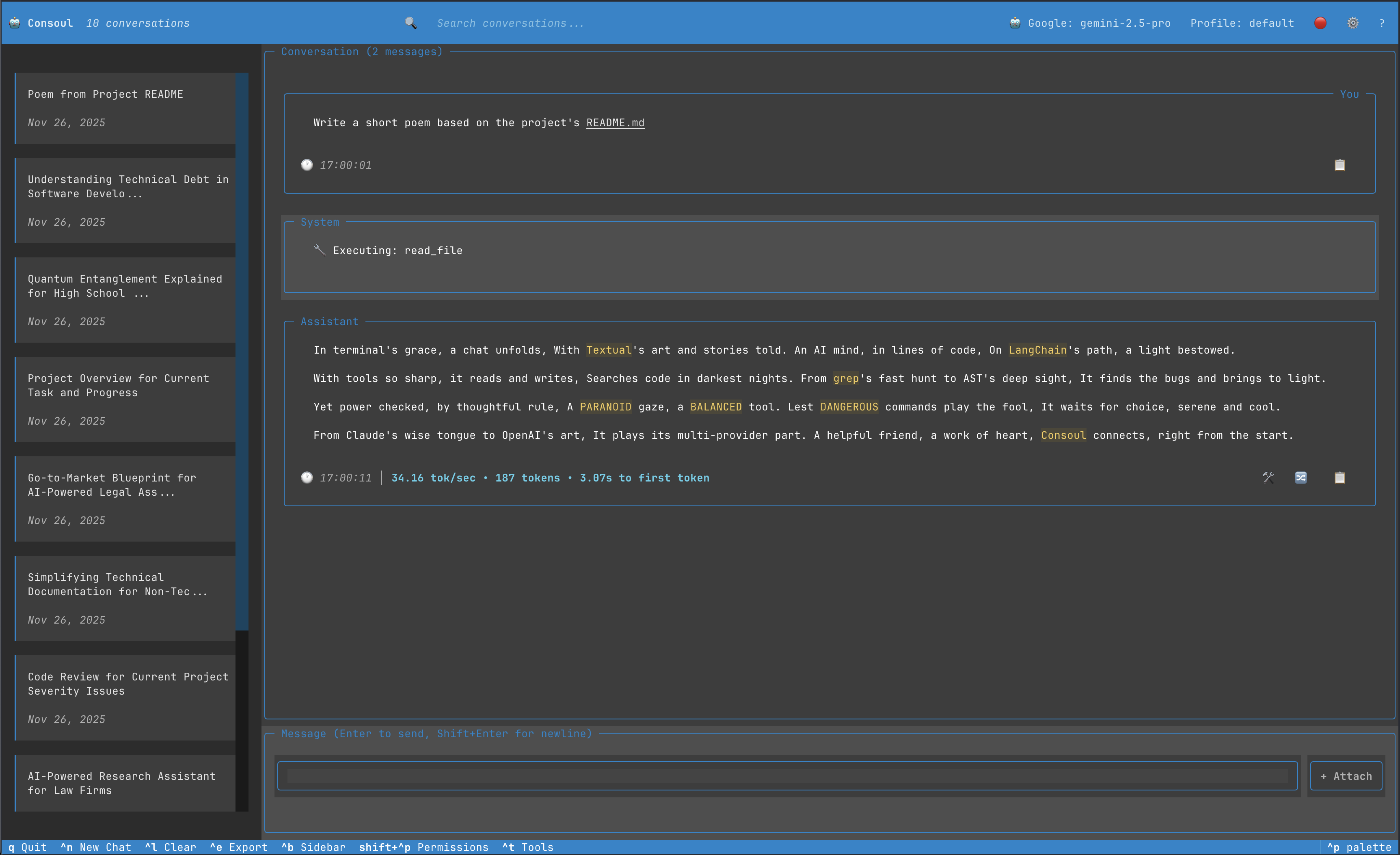
The TUI consists of several key areas:
- Header Bar - Shows app name, conversation count, search, current model, and profile
- Conversation Sidebar (toggleable) - Card-based list of all conversations with search
- Chat Area - Main conversation view with message bubbles and tool execution displays
- Input Area - Multi-line text input with file attachment support
- Footer - Keyboard shortcuts and quick actions
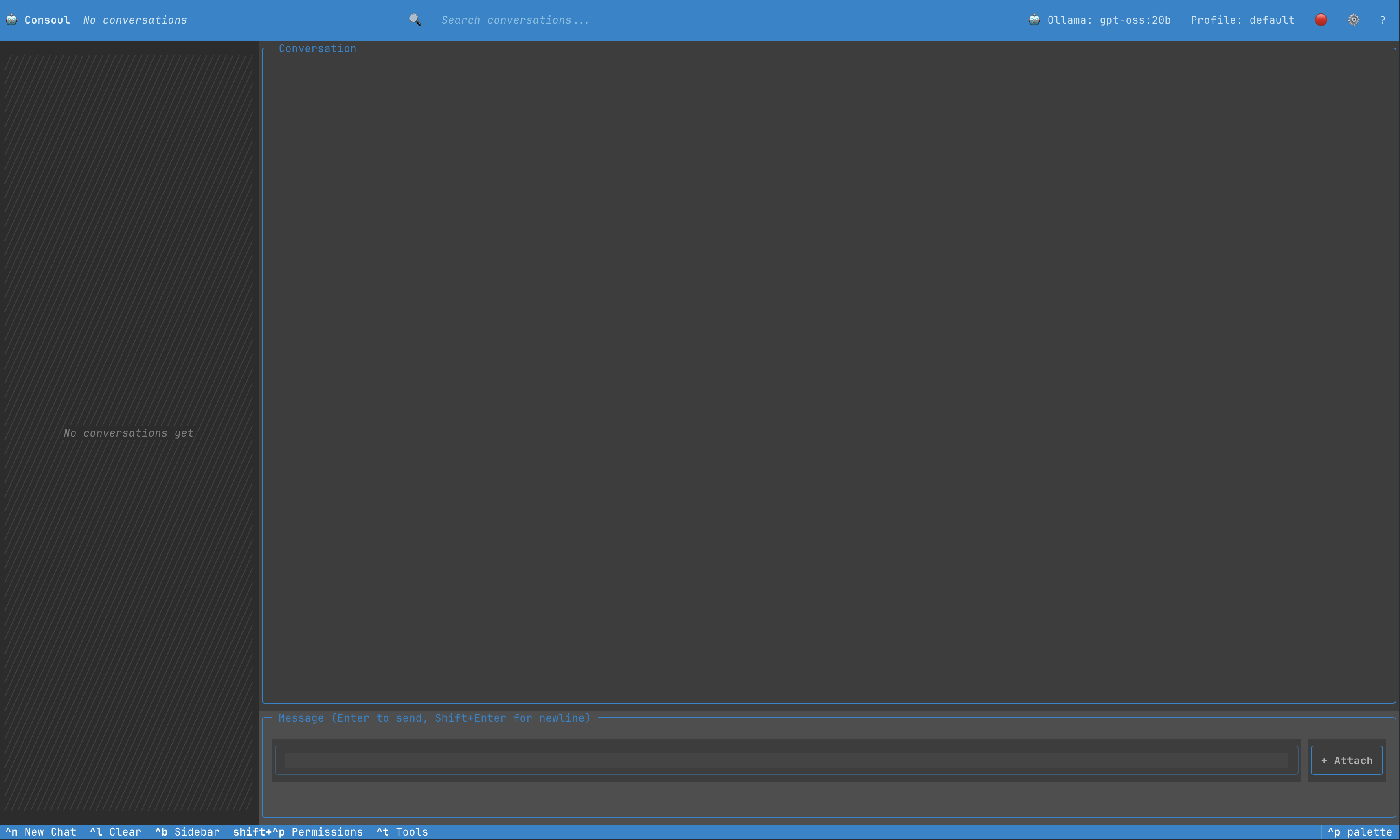 Empty state with sidebar showing "No conversations yet"
Message Types
Consoul displays different message types with distinct visual styles:
- User Messages - Your prompts and questions (blue border, right-aligned title)
- Assistant Messages - AI responses (purple border, left-aligned title)
- System Messages - Tool executions and system events (muted colors)
- Tool Call Widgets - Interactive display of tool execution with status indicators
 Tool calls shown as expandable widgets with execution status
Key Features
🗨️ Conversation Management
- Create unlimited conversations
- Search through conversation titles
- Resume previous conversations with full context
- Rename conversations
- Delete conversations
- Auto-generated conversation titles
⚡ Real-Time Streaming
- Streaming token display as the AI generates responses
- Live tool execution feedback
- Thinking indicators for extended reasoning
- Token count and performance metrics
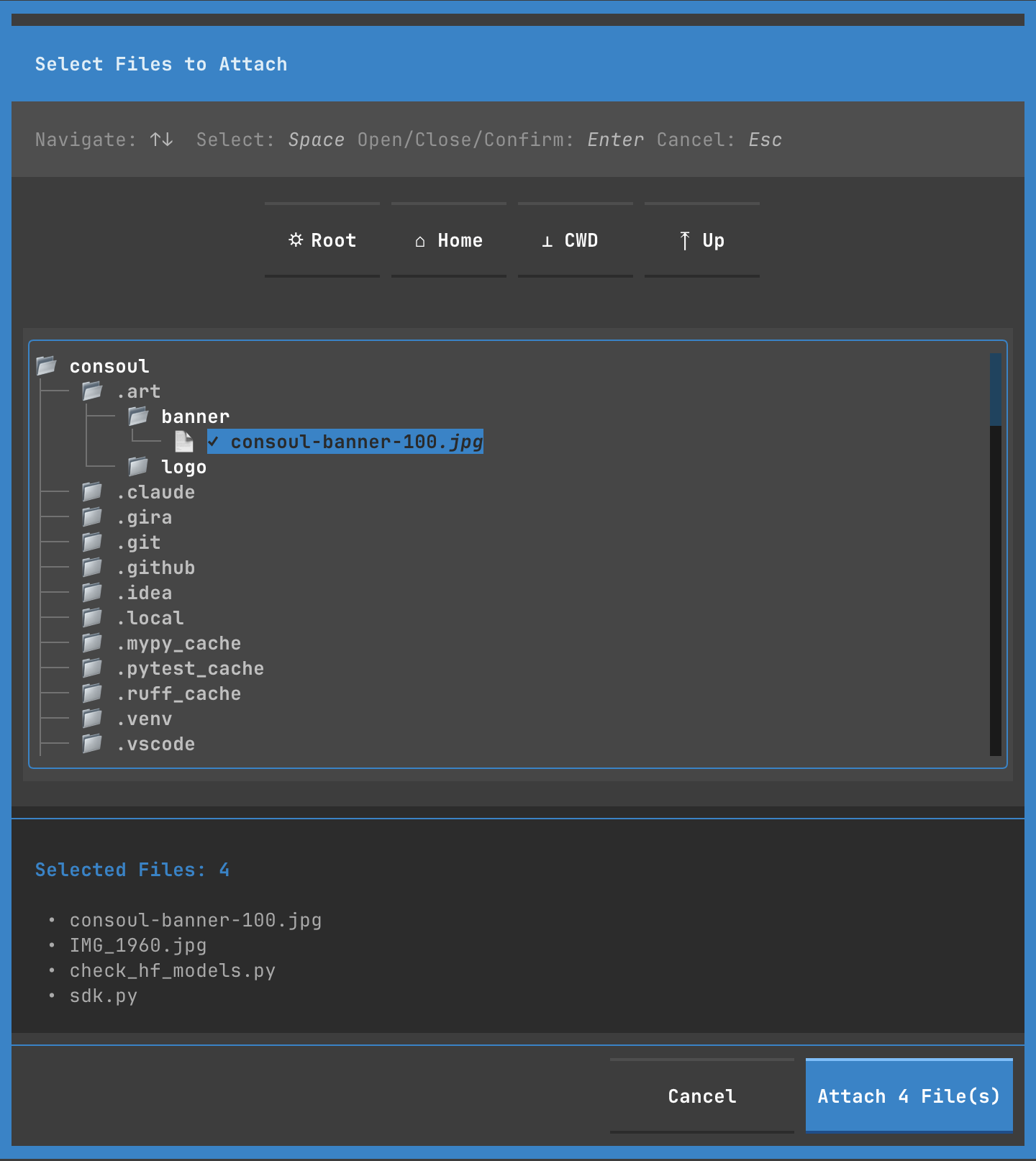
📎 File Attachments
- Attach files to provide context
- Visual file browser with tree navigation
- Multi-file selection
- File chips showing attached files
- Easy removal of attachments
🛠️ Tool Execution
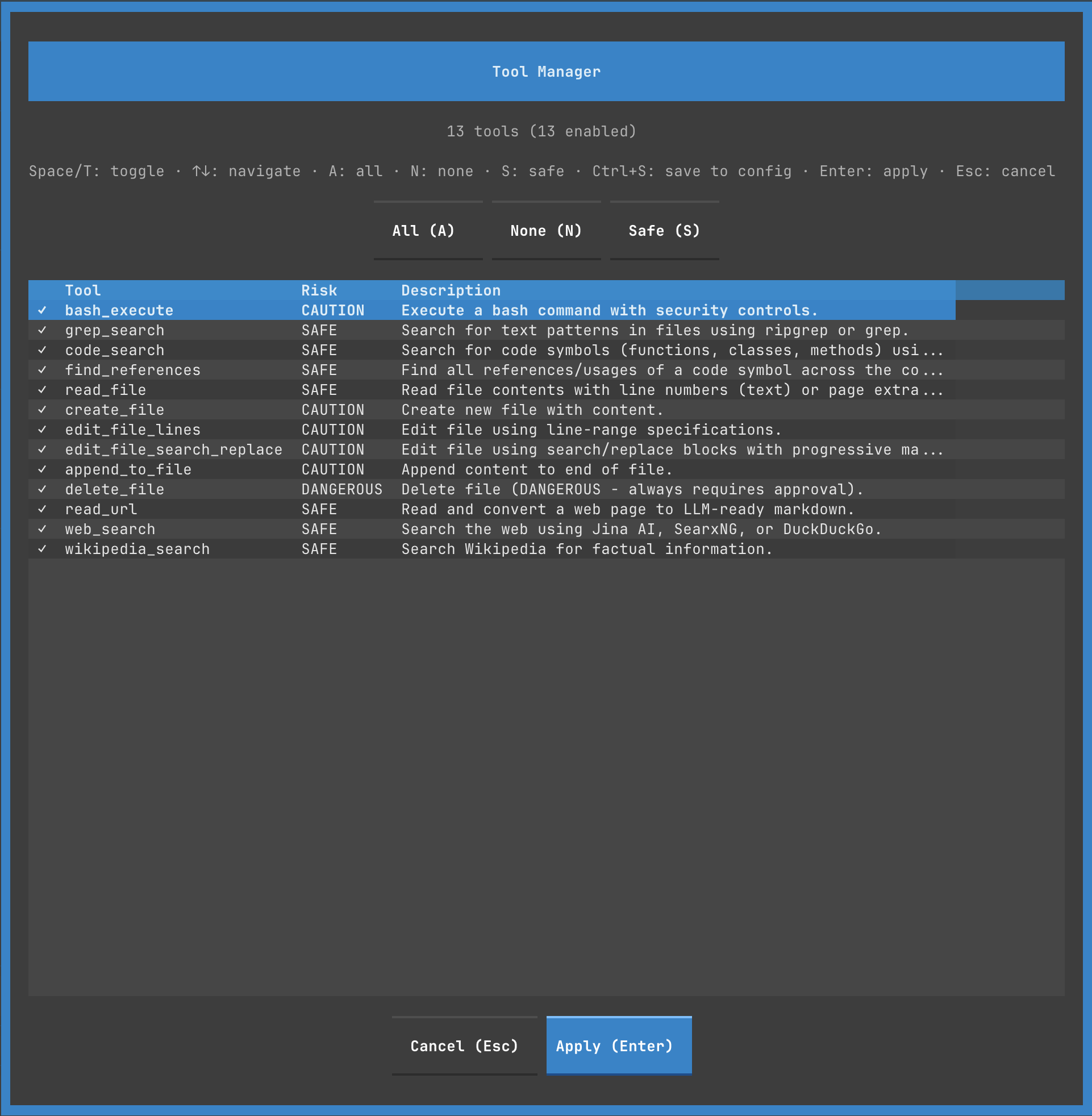
- Visual tool call widgets
- Execution status (pending, executing, success, error, denied)
- Expandable tool output
- Approval/denial workflow for dangerous operations
- Tool manager for enabling/disabling tools
🎨 Themes
Consoul provides two official brand themes, plus access to Textual's built-in themes:
Official Consoul Themes:
- Consoul Dark - Brand dark theme (default)
- Consoul Light - Brand light theme
Available Textual Themes:
- Nord, Gruvbox, Tokyo Night, Dracula, Monokai, Catppuccin, Solarized, Flexoki, and more
⚙️ Settings
Quick access to configuration:
- Theme selection
- Display options (sidebar, timestamps, token counts)
- Syntax highlighting toggle
- Multiple tabs: Appearance, Performance, Behavior, Advanced

Getting Started
1. Launch Consoul
2. Start a Conversation
- Type your message in the input area
- Press
Enterto send (orShift+Enterfor new line) - Watch the response stream in real-time
3. Attach Files (Optional)
- Click the
+ Attachbutton - Navigate the file tree
- Select files with
Space - Confirm with
Enter
4. Manage Conversations
- Click conversation count in header to toggle sidebar
- Search conversations with the search bar
- Click any conversation card to load it
- Use
^nto create a new conversation
5. Customize
- Press
^comma(Ctrl+,) to open settings - Choose your preferred theme
- Toggle display options
- Press
^tto access the tool manager
Keyboard Shortcuts
| Shortcut | Action |
|---|---|
q |
Quit application |
^n |
New conversation |
^l |
Clear current conversation |
^b |
Toggle sidebar |
^comma |
Settings (Ctrl+,) |
^m |
Model picker |
^p |
Profile selector |
^e |
Export conversation |
^i |
Import conversation |
^t |
Tools manager |
^s |
Search history |
shift+^p |
Permissions (alias for ^t) |
f1 |
Help |
Enter |
Send message |
Shift+Enter |
New line in input |
Full keyboard shortcuts reference →
Learn More
- TUI Interface Guide - Detailed UI component reference
- TUI Features - In-depth feature documentation
- Keyboard Shortcuts - Complete shortcut reference
- Modals & Dialogs - Settings, tools, and model selection
- Themes - Theme gallery and customization
- Configuration - TUI-specific configuration options
Tips & Tricks
Productivity
- Use
^nfrequently to keep conversations organized by topic - Search conversations with
^bto quickly find past discussions - Attach files before asking questions for better context
- Use the tool manager to enable only the tools you need
Performance
- Toggle timestamps and token counts off for cleaner UI
- Collapse the sidebar when focusing on a single conversation
- Use lighter themes on slower terminals for better performance
Workflows
- Code Review: Attach files → Ask for review → Use tool execution for fixes
- Debugging: Copy error → Paste in Consoul → Attach relevant files → Get diagnosis
- Learning: Ask questions → Save conversation → Resume later for follow-ups
- Research: Multi-turn conversation → Export to markdown for documentation
Troubleshooting
TUI Won't Launch
# Check if consoul is installed
which consoul

# Verify Python version (3.12+ required)
python --version

# Try with explicit python
python -m consoul.tui
Display Issues
- Ensure your terminal supports 24-bit color
- Try different themes in settings
- Increase terminal window size
- Check terminal font supports Unicode
Performance Issues
- Reduce max tokens in settings
- Disable syntax highlighting
- Use a lighter theme
- Close other terminal applications
Next Steps
Ready to dive deeper? Check out:
- Interface Guide - Learn every component of the UI
- Keyboard Shortcuts - Become a power user
- Configuration - Customize your experience